Connect to Azure SQL Database
Get the official Microsoft SQL Server Driver dependency for Go
//Note: Use "go get" instead of "go install". See Questions section.
go get github.com/microsoft/go-mssqldb@latest
Edit the main.go file to connect to the database
package main

import (
	"database/sql"
		_ "github.com/microsoft/go-mssqldb"
	"fmt"
	"log"
	"os"
	// For Entra ID
	_ "github.com/microsoft/go-mssqldb/azuread"
)


func main() {
	server := os.Getenv("DB_SERVER") // e.g., "myserver.database.windows.net"
	database := os.Getenv("DB_NAME") // e.g., "mydb"

	connString := fmt.Sprintf("server=%s;database=%s;fedauth=ActiveDirectoryDefault;user id=userID@domain.com;encrypt=true",
		server, database)

	db, err := sql.Open("azuresql", connString) // Note the driver name "azuresql"
	if err != nil {
		log.Fatal(err)
	}
	defer db.Close()

	if err := db.Ping(); err != nil {
		log.Fatal("Ping failed: ", err)
	}

	log.Println("Successfully connected!")
}
Two methods to connect to Azure SQL Database
- Connect using Entra ID Authentication with User ID
- Connect using System Assigned Managed Identity (SAMI) for Authentication
Connect to Azure SQL Database using Entra ID Authentication with User ID
Add a user in Entra ID and grant it access to the database, then use the user ID in the connection string.
Using System Assigned Managed Identity (SAMI) for Authentication
To use SAMI for authentication, ensure that your Azure Function App has a system assigned managed identity
Let's secure our database with Entra ID system managed ID (step 1 of 2)
- Go to Azure Portal.
- Open your Azure SQL server
- under "Settings", click on "Identity"
- Under "System assigned", click "On" and then "Save"
- After the identity is created, go to "Azure role assignments" and click "Add role assignment"
- Select "SQL DB Contributor" role and assign access to the system assigned identity you just created.
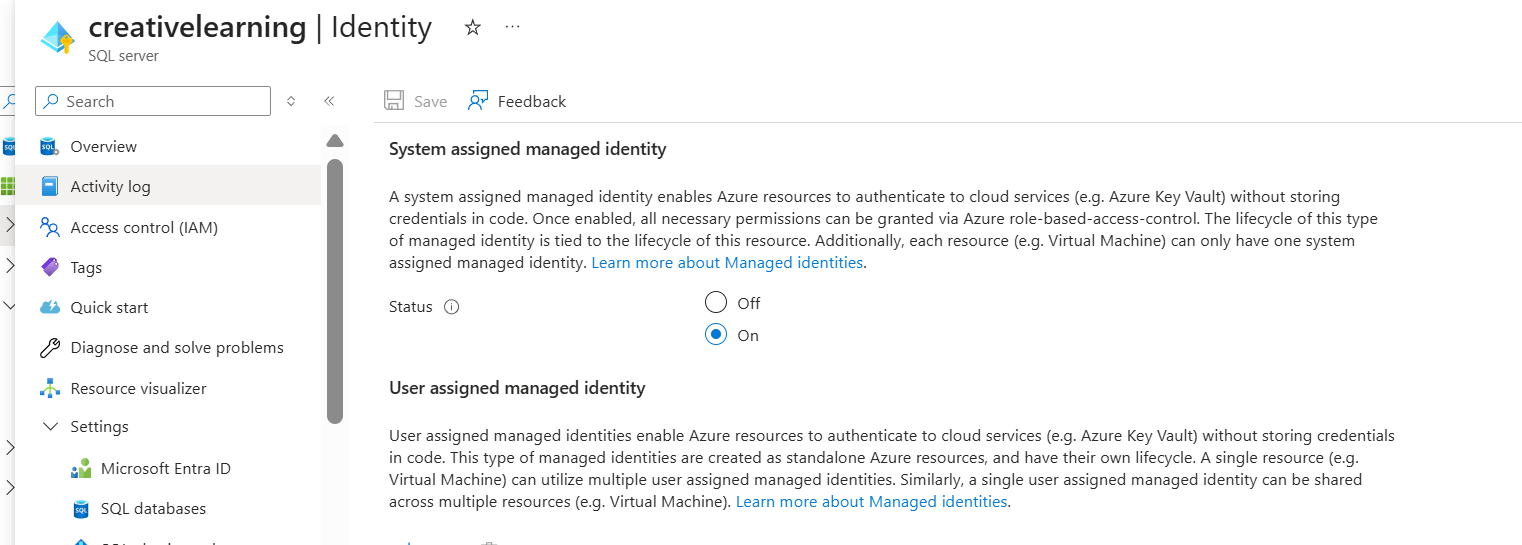
Step 2 of 2 - Assign Entra ID user to the database
- Go to "Query editor" in the Azure portal for your database and login with your Entra ID credentials (you must be an admin to do this step)
- Run the following SQL commands to create a user for the system assigned identity and grant it permissions:
CREATE USER [your-identity-name] FROM EXTERNAL PROVIDER;
ALTER ROLE db_datareader ADD MEMBER [your-identity-name];
Create an .env file to run the application locally
Ensure that .env file is never commited to source control as it contains sensitive information. Add it to .gitignore if using git.
APP_ENV=dev

$env:DB_SERVER="your-server.database.windows.net"
$env:DB_NAME="your-database-name"
$env:AZURE_CLIENT_ID="your-client-id-guid"
$env:AZURE_USER_ID="your-user-id-in-email-format"
air
Confirm the connection works by running the application
- Copy the entire code snippet in the .env file.
- All set! You should get the following messsage printed in the terminal:
Successfully connected to Azure SQL!
Details not covered in the quick steps above
Most common authentication scenarios with fedauth parameter in the connection string
Requirement: Application Client ID - fedauth=ActiveDirectoryPassword is used when you want to authenticate using Entra ID with a username and password. - Use fedauth=ActiveDirectoryMSI authentication with Managed System Identity (MSI) in Azure.
Without Application Client ID - Use fedauth=ActiveDirectoryDefault for running it locally with Entra ID authentication.
Common Error message when Application Client ID is required but not provided:
Connection failed! Check Azure Firewall or Entra permissions: applicationclientid parameter is required for ActiveDirectoryPassword
Questions?
- When to use
go getvsgo install? Since Go 1.16go getis now primarily used for managing dependencies, whilego installis recommended for installing binaries.